
Getting started
Get the app
You can add this site to your phone’s home screen so it opens like an app — no App Store download required. That puts meetings, role sign-ups, and club info one tap away in your list of apps.
Install instructions
iOS (iPhone & iPad)
On your iOS device, open this site in Safari.
-
Step 1
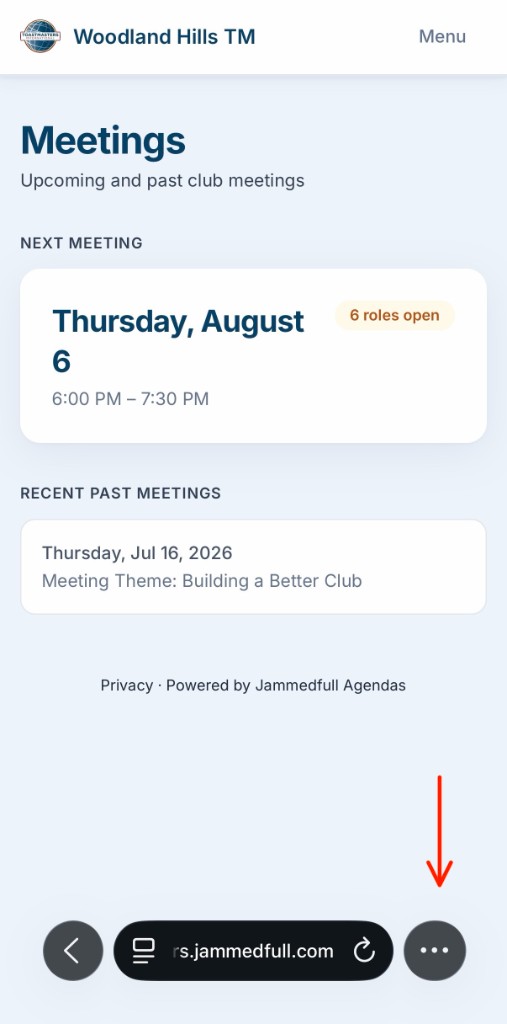
Tap the three dots
In Safari’s bottom toolbar, tap the three dots (···) on the right.
-
Step 2
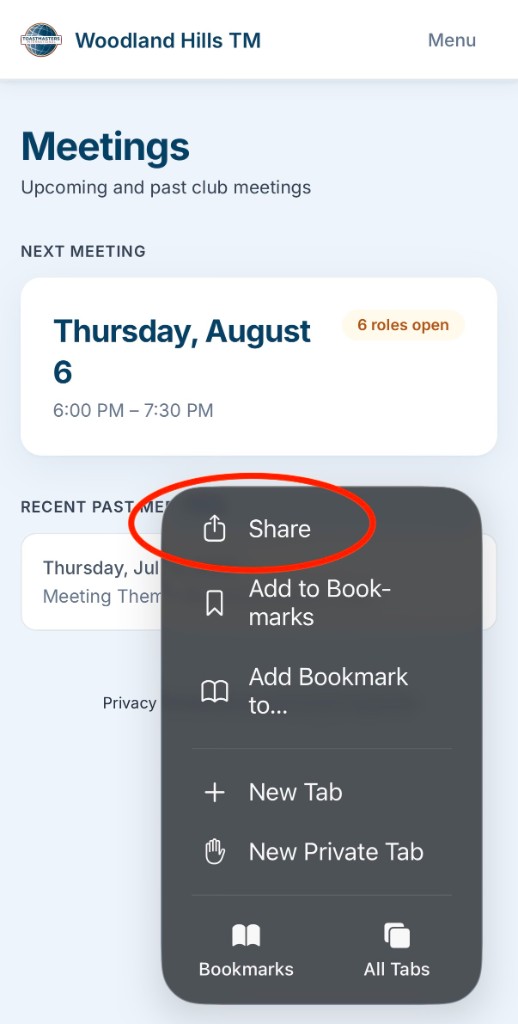
Tap Share
From the menu that opens, tap Share (square with an arrow pointing up).
-
Step 3
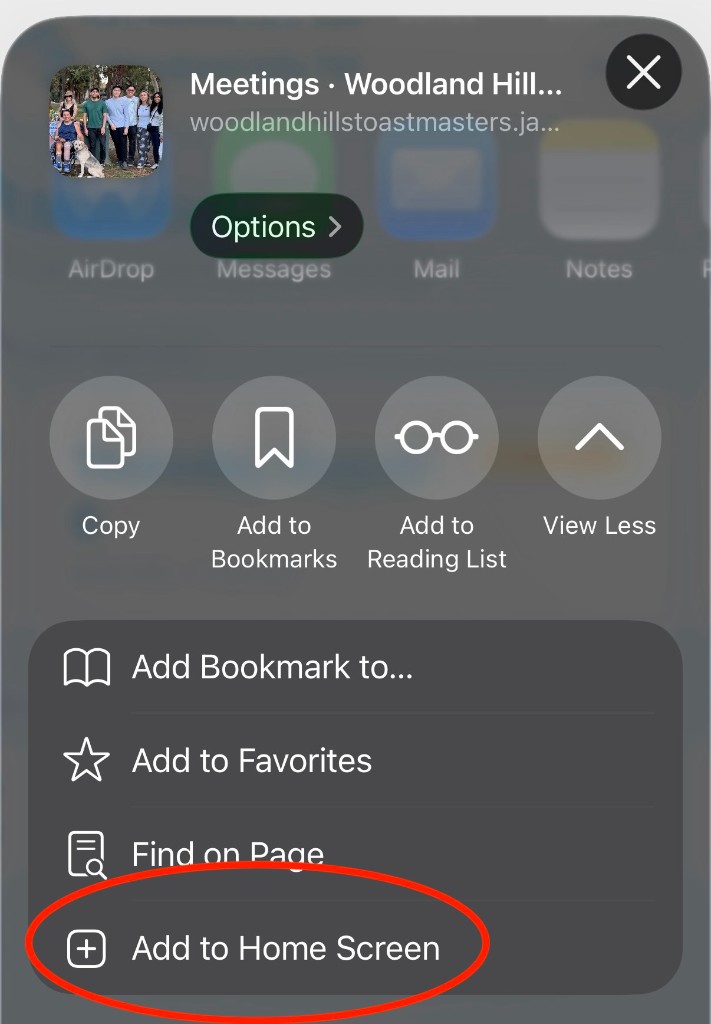
Add to Home Screen
In the share sheet, scroll down and tap Add to Home Screen.
-
Step 4
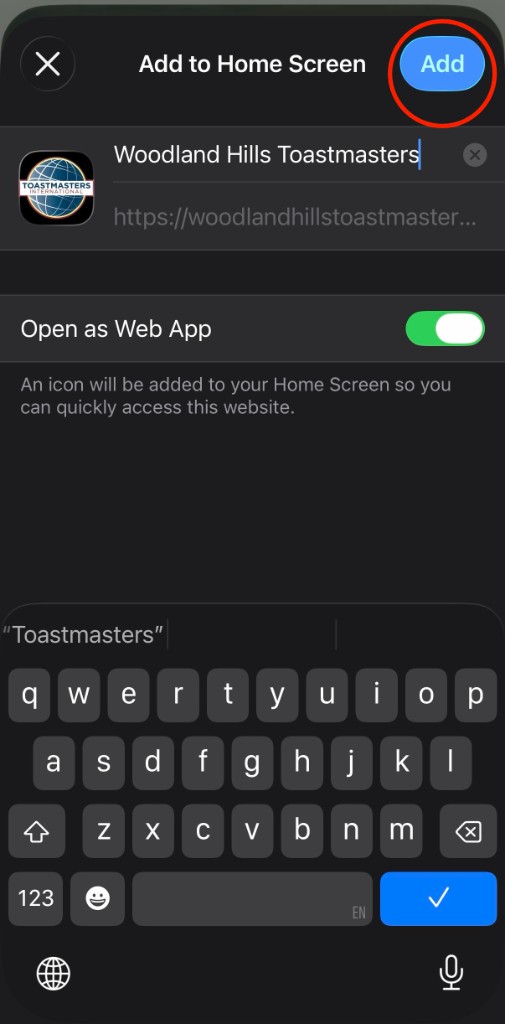
Confirm and tap Add
Edit the name if you like, leave Open as Web App on, then tap Add in the top right. The icon appears on your Home Screen.
Android (Chrome)
On Android, open this site in Google Chrome.
-
Step 1
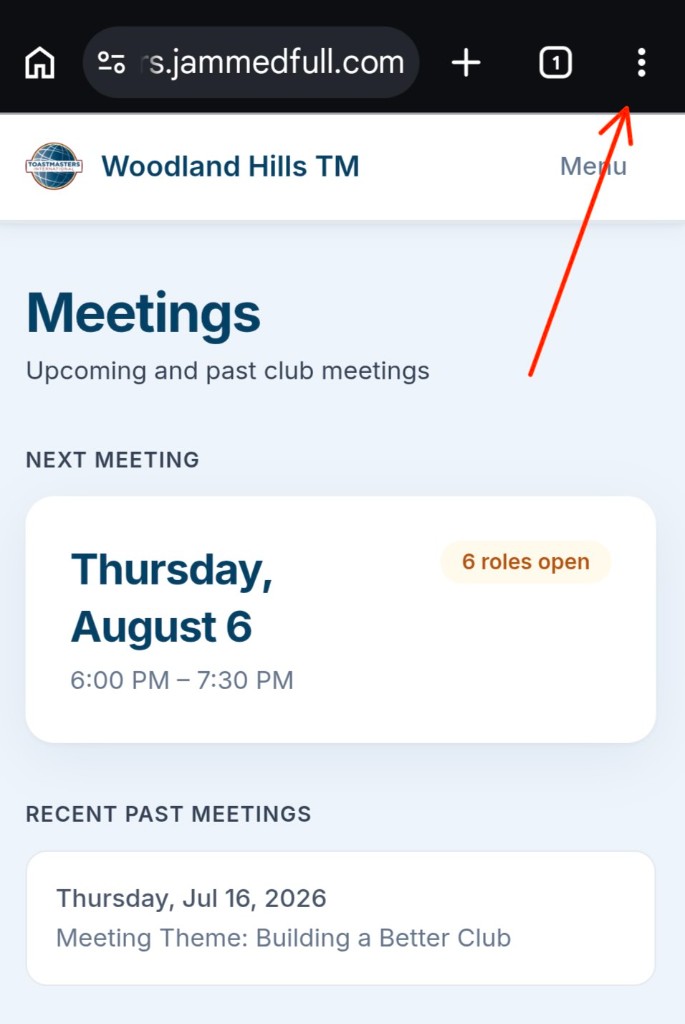
Tap the three dots
In Chrome’s top bar, tap the three vertical dots (⋮) in the top-right corner.
-
Step 2
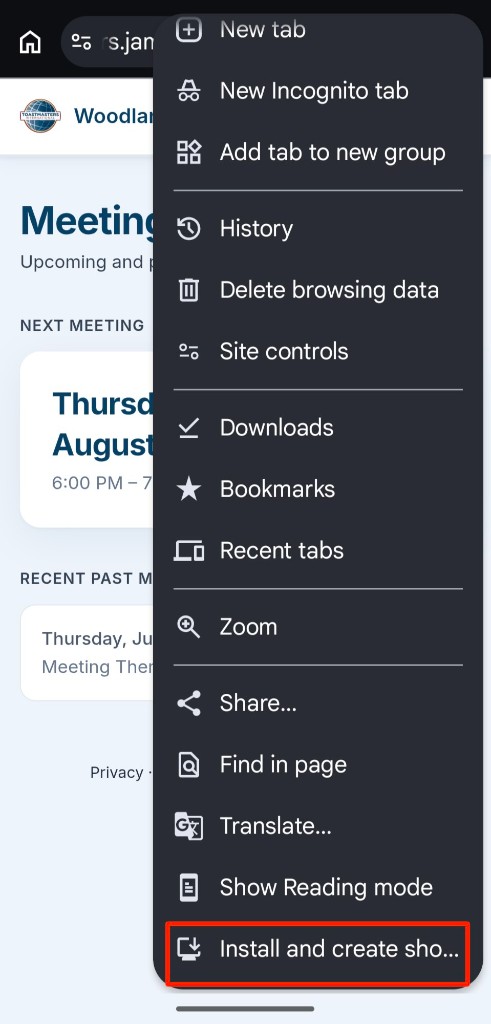
Tap Install and create shortcut
Scroll to the bottom of the menu and tap Install and create shortcut.
-
Step 3
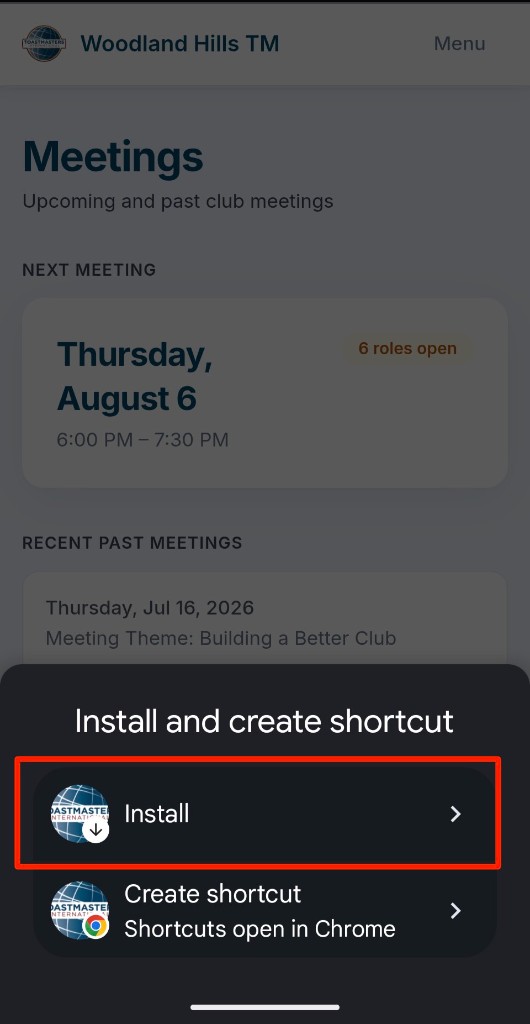
Choose Install
Tap Install (recommended) so the site opens like an app. Avoid Create shortcut unless you specifically want it to open in Chrome.
-
Step 4
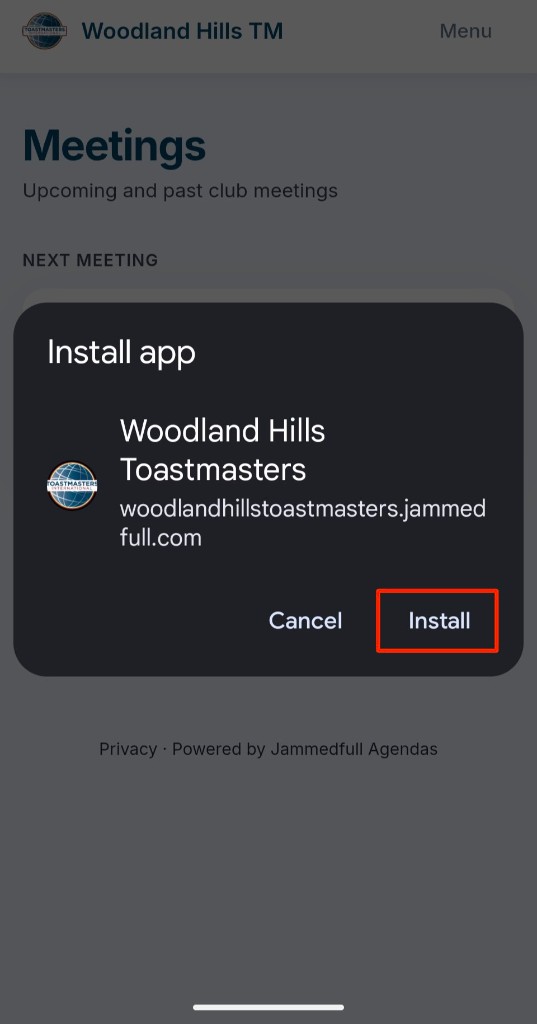
Confirm Install
In the Install app dialog, tap Install. The icon appears on your home screen.
Pro Tip: If you want to delete these “apps” later, press and hold the icon on your screen and select Delete Bookmark (iOS) or Remove / Uninstall (Android), just like a normal app.